It cannot fix every portrait
A blurry, heavily cropped, obstructed, or poorly lit source can limit the quality of the animated result.
Workaround
Use a sharp, front-facing image with visible facial features and a simple background.
Image to video
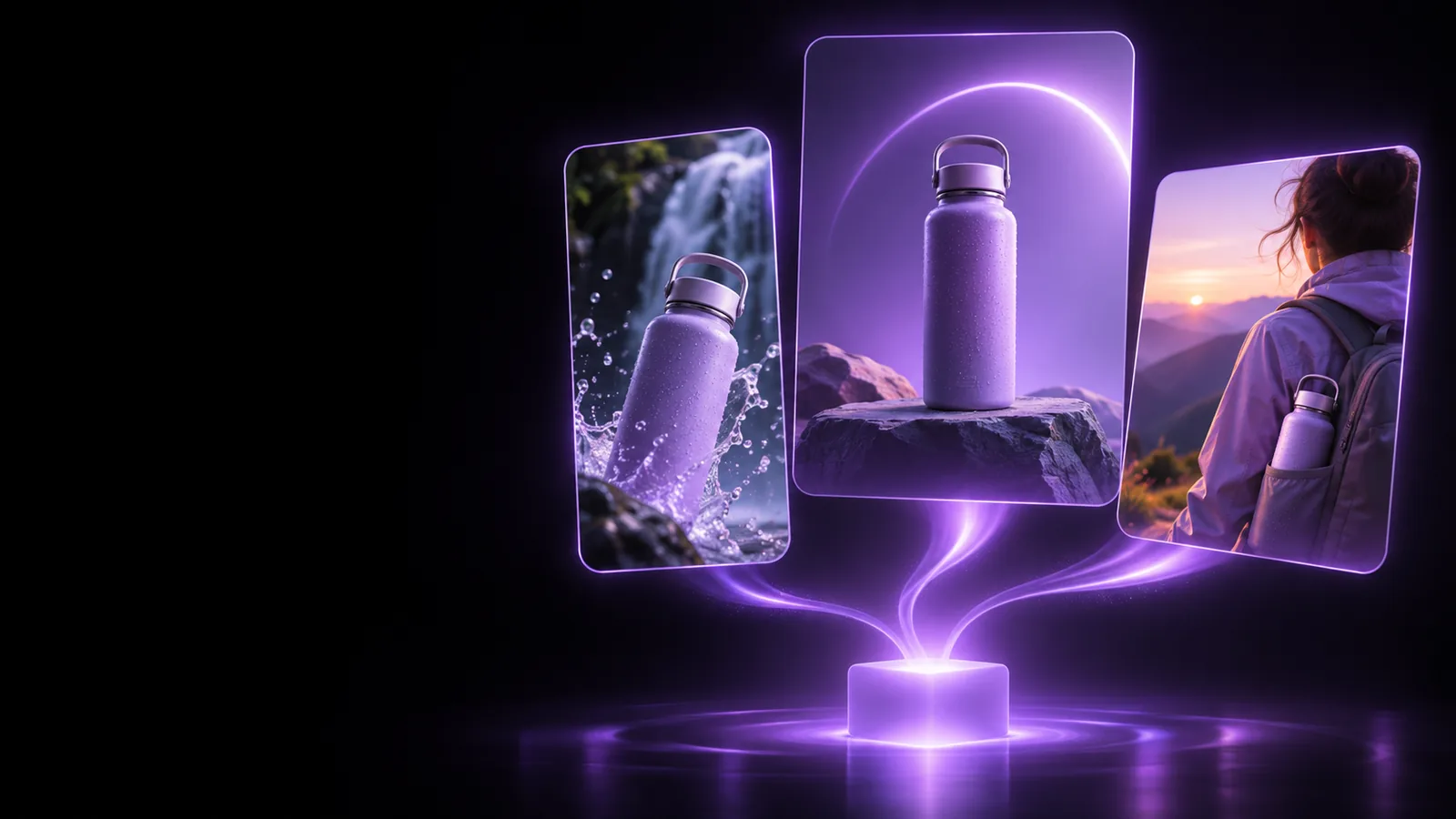
A pippit ai talking photo workflow gives a still portrait a more expressive role by pairing the image with motion, timing, and a spoken message. Use the editor to shape a short visual for a product, lesson, announcement, or social post.
Related workflows
How it works
The useful transformation is not only facial motion. It is the handoff from a prepared image to a timed visual message that has a clear audience and purpose.
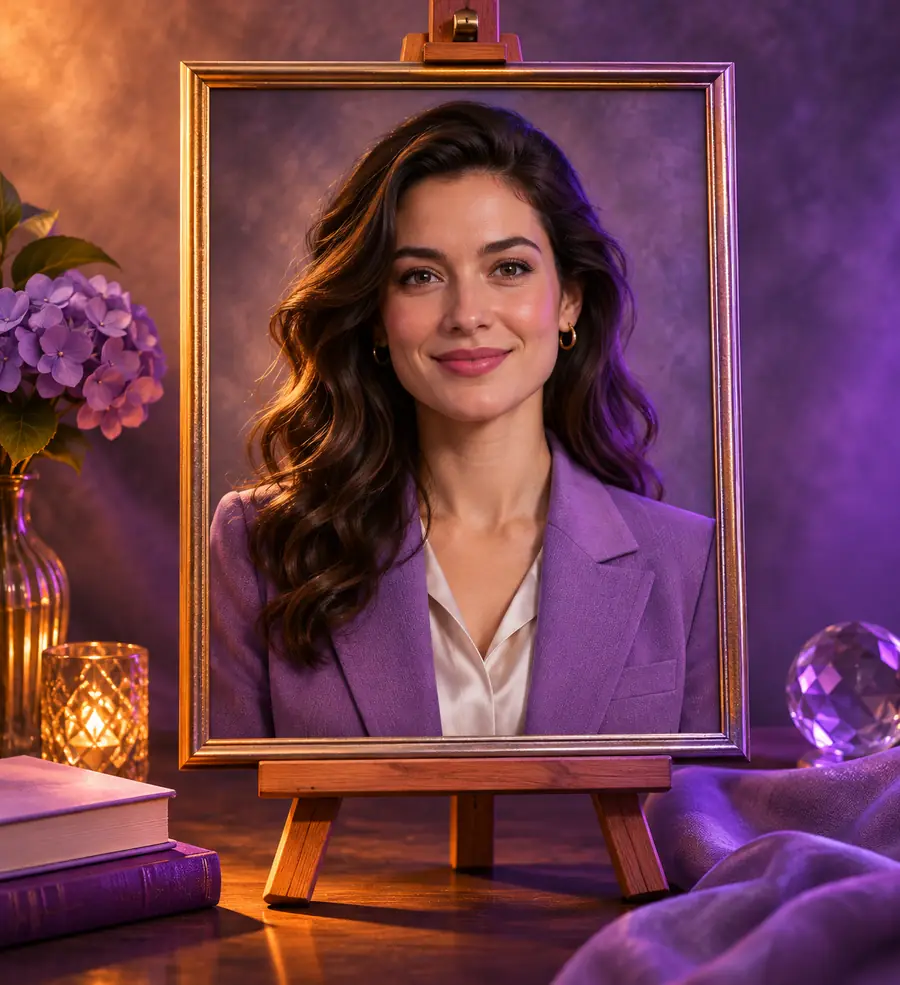
Select a portrait or other suitable still image with a visible subject, clear framing, and enough space for the final composition.
Describe the voice, tone, wording, and pacing you want. A focused script usually produces a more coherent result than a list of unrelated instructions.
Check the expression, timing, pronunciation, and visual context. Adjust the prompt or source image when the output does not match the intended speaker.
Set expectations
A talking photo is effective for short, focused communication, but it is not a replacement for every kind of video production.
A blurry, heavily cropped, obstructed, or poorly lit source can limit the quality of the animated result.
Workaround
Use a sharp, front-facing image with visible facial features and a simple background.
Expressions, lip timing, tone, and pronunciation may need review, especially with unusual names or specialized vocabulary.
Workaround
Keep the script concise and revise wording that sounds difficult to pronounce.
One animated portrait does not automatically create a complete campaign, lesson, or narrative with varied locations and characters.
Workaround
Combine the talking photo with additional clips, images, captions, or a wider video workflow.
Using a recognizable person's likeness or voice without appropriate permission can create trust, privacy, and rights concerns.
Workaround
Use your own assets or obtain clear permission before sharing the finished content.
Input to output
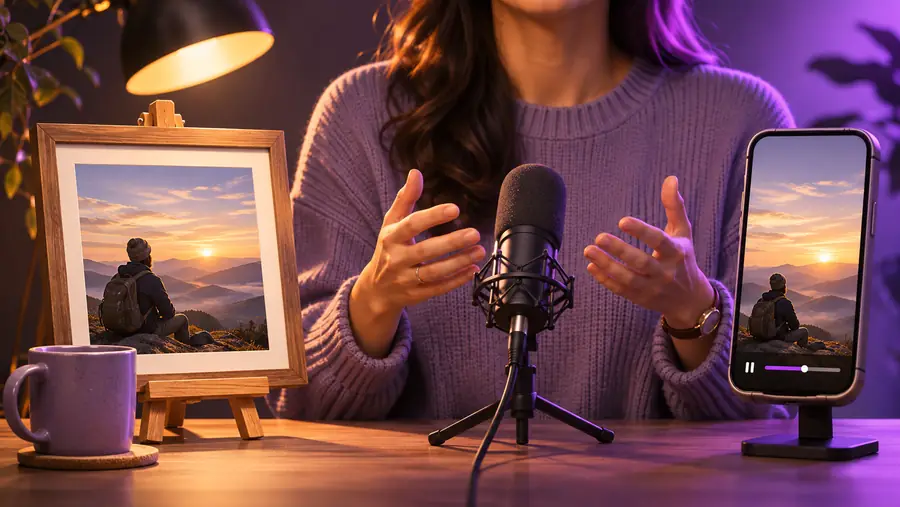
The clearest change is visible in the relationship between the source portrait and the finished speaking visual. The image remains the anchor while the message adds movement and context.
 Source portrait
 Talking result
Make the next draft
Pippit helps you move from a rough idea to a reviewable talking photo without losing sight of the audience. Start with one source image, one short message, and one intended use; then refine the result after you see how the visual and words work together.
Create a talking photoCommon questions
A talking photo gives a still portrait a voice-led, animated presentation. People may use this format for short announcements, product explanations, introductions, educational messages, or social content.
A sharp, front-facing portrait with visible facial features is usually easier to work with than a distant, dark, or obstructed image. A simple background can also help keep attention on the speaker.
You can guide the result with a concise script or prompt that states the message, tone, and audience. Review the generated result because wording, pronunciation, and timing may still require adjustment.
No. It is a focused image-led format built around a still subject and a spoken message. A larger video project may need multiple shots, scenes, supporting visuals, captions, and more detailed editing.
Yes. Use your own image or obtain appropriate permission when a recognizable person appears in the source material. Consent and accurate representation matter even when the final asset is short.